Instagram Downloader for iPhone: A Mobile Guide
Learn how to download authorized Instagram videos on iPhone using Safari and the Files app. Export clean MP4 files directly to your Photos Camera Roll.
Direct Answer & Technical Recommendation
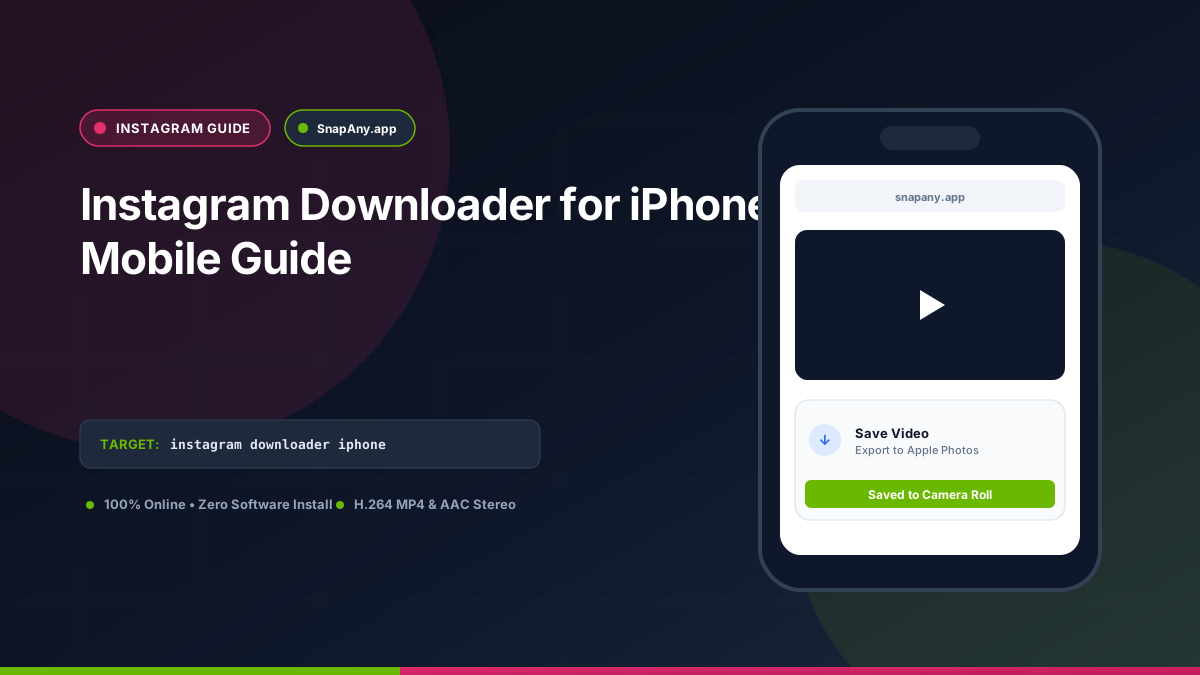
To save an authorized Instagram Reel or video on iPhone: copy the link from the Instagram app, open Safari, paste the URL into SnapAny, tap Inspect Video, and choose Download MP4. Safari saves the video to the Files app; tap Share > Save Video to export it to your Photos Camera Roll.
How to Copy Instagram Video Links on iPhone
1. Open the Instagram app on your iPhone. 2. Locate the public video or Reel you wish to save. 3. Tap the **Share icon** (paper airplane). 4. Tap **Copy link** at the bottom of the sharing tray. 5. A confirmation message ("Link copied to clipboard") will appear.
Step-by-Step Safari Download Workflow on iOS
1. Launch **Safari** (do not use in-app social browsers). 2. Go to `snapany.app/instagram-video-downloader`. 3. Paste your link into the URL input and tap **Inspect Video**. 4. Tap **Download MP4 File**. 5. When Safari displays the prompt "Do you want to download Instagram_Authorized_Media.mp4?", tap **Download**. 6. Monitor progress via the circular download indicator in the Safari address bar.
Moving Downloaded MP4 Files to Your Camera Roll (Photos App)
To make the downloaded video appear in Apple Photos: 1. Tap the **Downloads icon** in Safari or open the native **Files** app. 2. Tap the downloaded video file to open the iOS player. 3. Tap the **Share icon** in the bottom-left corner. 4. Tap **Save Video**. The MP4 file is now permanently stored in your Camera Roll and can be edited in CapCut, iMovie, or sent via Messages.
Troubleshooting Common iPhone Download Errors
If your download fails on iOS: - **Low iPhone Storage:** Check **Settings > General > iPhone Storage**. Ensure you have at least 1 GB of free space for temporary file buffering. - **Private Link Notice:** Confirm that the Instagram post is from a public profile; private links cannot be processed by Safari without active session cookies.
Key Takeaways & Best Practices
- iOS Safari includes a built-in download manager that downloads MP4 video files directly.
- No third-party App Store utility or configuration profile is required.
- Using the "Save Video" option in the iOS Share Sheet moves MP4 files into the Photos app.
- The native Instagram app also offers an in-app "Download" button for eligible public Reels.
Frequently Asked Questions
Will downloaded Instagram videos retain full audio on iPhone?
Yes. Instagram MP4 files use standard AAC stereo audio which plays natively in iOS Photos and media players.
Do I need to install an app from the App Store to save Instagram videos?
No. Modern Safari handles downloads natively into the Files app without requiring external software.
How do I copy a Reel link in the Instagram iPhone app?
Tap the paper airplane Share icon on the Reel, then tap "Copy link" from the share sheet.
Why did my downloaded Reel save to Files instead of Photos?
iOS Safari defaults to the Downloads folder. Tap the file in Files, tap Share, and select "Save Video" to transfer it to your camera roll.
Instagram Downloader Tool
Inspect public video links and download authorized MP4 or MP3 streams directly in your browser.