YouTube Downloader for iPhone: A Practical Mobile Guide
Complete tutorial on saving authorized YouTube videos on iPhone. Learn Safari file management, Camera Roll export, and iOS storage tips.
Direct Answer & Technical Recommendation
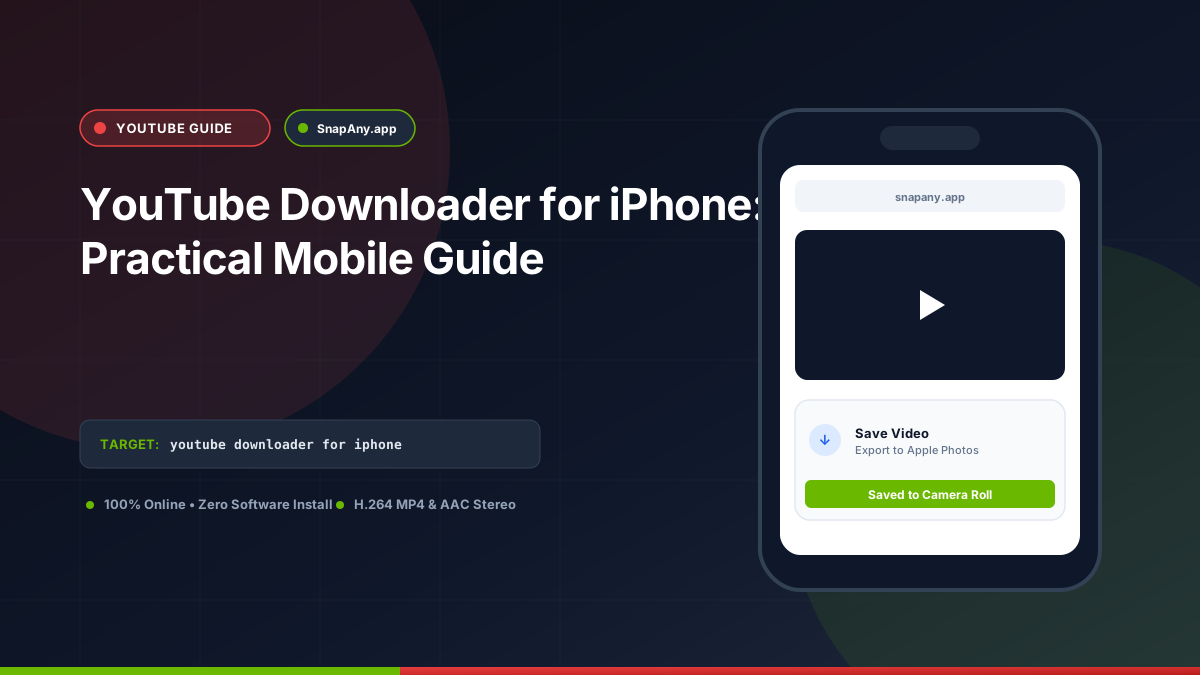
To save an authorized YouTube video on iPhone without third-party apps, copy the video link, open Safari, paste the URL into SnapAny, select an MP4 format, and tap Download. Safari's built-in download manager saves the file into the Files app, from which you can tap Share > Save Video to send it to your Camera Roll.
How iOS Manages Video File Downloads in Modern Versions
In earlier versions of iOS, Apple restricted direct file downloads in Safari. However, iOS 13 through iOS 18+ include a full-featured desktop-class download manager. When a web server serves an MP4 file with a `Content-Disposition: attachment` header, Safari prompts: "Do you want to download [filename]?" and places the file into the Files app sandbox. This architecture eliminates the need for suspicious third-party "downloader" apps from the App Store that frequently inject adware or violate Apple developer policies.
Step-by-Step Safari Download Workflow for iPhone & iPad
Follow this sequence to download authorized media on iOS: 1. **Copy the YouTube Link:** Open the YouTube app, tap **Share**, and tap **Copy Link**. 2. **Open Safari:** Navigate to `snapany.app/youtube-video-downloader`. 3. **Inspect the Link:** Paste the link into the URL input and tap **Inspect Video**. 4. **Initiate Transfer:** Select your desired MP4 resolution (e.g., 720p or 1080p) and tap **Download MP4**. 5. **Confirm Download:** When Safari displays the download prompt, tap **Download**. An animated downward arrow will appear in the Safari address bar showing transfer progress.
Moving Downloaded MP4 Files to Your Photos App (Camera Roll)
By default, downloaded files stay in your iCloud Drive or local iPhone storage. To make the video appear in your Photos app alongside your camera recordings: 1. Tap the **Downloads icon** (downward arrow in a circle) in Safari's address bar, or open the standalone **Files** app. 2. Tap the downloaded MP4 file to open the iOS QuickLook preview. 3. Tap the **Share icon** (square with an upward arrow) in the bottom-left corner. 4. Scroll down and tap **Save Video**. The video file is now copied into your Apple Photos library and can be edited in CapCut, iMovie, or sent via Messages.
iPhone Download Troubleshooting: Low Storage and Broken Links
If your download fails on iPhone: - **Low Device Storage:** Check **Settings > General > iPhone Storage**. Video files require free space equal to at least 1.5x the file size during download buffering. - **Safari Pop-up Blocker:** If tapping download produces no reaction, go to **Settings > Safari** and ensure "Block Pop-ups" is not blocking the media window. - **Low Power Mode Restrictions:** Aggressive iOS battery management can throttle background transfers. Keep Safari active on the screen until the download progress finishes.
Key Takeaways & Best Practices
- iOS Safari includes a native download manager (introduced in iOS 13) that handles direct MP4 downloads.
- Downloaded video files default to the "Downloads" folder inside iCloud Drive or "On My iPhone".
- The "Save Video" option in the iOS Share Sheet moves MP4 files directly into the native Photos app.
- YouTube Premium provides instant encrypted offline playback directly in the official iOS YouTube app.
Frequently Asked Questions
Do I need to install a third-party app to download videos on iPhone?
No. Modern iOS Safari has a native download manager that handles MP4 files directly into the Files app.
Why doesn't the "Save Video" option appear in the Files app share sheet?
If the downloaded file has an unsupported codec (such as VP9 in an MKV container), iOS cannot render it into the Photos app. Ensure you select an H.264 MP4 container.
Why doesn't Safari automatically play the video after downloading?
Safari saves downloaded media to the Downloads manager icon in the address bar. Tapping the download icon displays the file, which you can then save to Apple Photos.
Can I save YouTube videos to my camera roll on iOS 17 and iOS 18?
Yes. In the iOS Files app, tap the downloaded MP4, tap the Share icon in the bottom-left corner, and select "Save Video" to transfer it to the camera roll.
YouTube Downloader Tool
Inspect public video links and download authorized MP4 or MP3 streams directly in your browser.